KB Article #5489
The Online Booking process begins with your customer creating their booking using the steps outlined below.
To request a booking:
- Using your Internet browser, go to the National website for your vehicle (https://www.vauxhall.co.uk) or your local dealer's website.
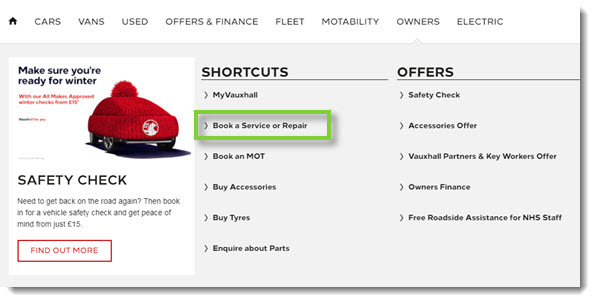
- Click Owners. (If booking from your local dealer's website, booking may be in a different location.)

- Click Book a Service or Repair. (If booking from your local dealer's website, booking may be in a different location.)
- Enter your vehicle's registration number and mileage in the provided fields and click Find.

- If you don't know your vehicle's registration number, click Don't know your registration number? and fill in the provided fields.
- When your vehicle appears, confirm it is yours and click Continue.

- Enter your Postcode or Town and click Find. (If booking from your local dealer's website, you will skip this step.)

- Choose a dealer workshop from the provided list and click Continue. (If booking from a local dealer's website that is not part of a group, you will skip this step.)

- Notes:
- If your dealer is part of a group, only retailers in that group will display.
- Distances are calculated as straight-line distances, as opposed to driving distances. This can affect accuracy in some cases (such as when locations are separated by a large body of water).
- Notes:
- Choose the work you would like performed, based on the dealer selected, by selecting the tickboxes. Click the
 to view additional details about a job.
- If desired work is not listed, enter it in the Other Items field. The dealer will reach out to discuss details regarding the request.

- If desired work is not listed, enter it in the Other Items field. The dealer will reach out to discuss details regarding the request.
- The total for the selected work appears in the right box.
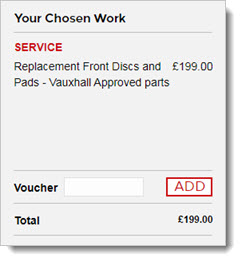
- Click Continue.
- Choose the desired date of work. Note: Only available dates will show.

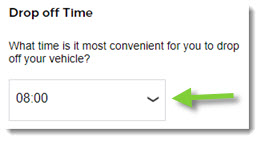
- Choose a Drop off Time. Note: Only available time slots will show.
- Choose appropriately from the Transport Options drop-down menu.
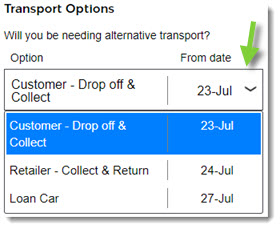
- When ready, click Continue.
- Fill in your contact information in the provided fields.

- Click Continue.
- A summary of the booking displays. Please review and click Confirm Booking when ready.
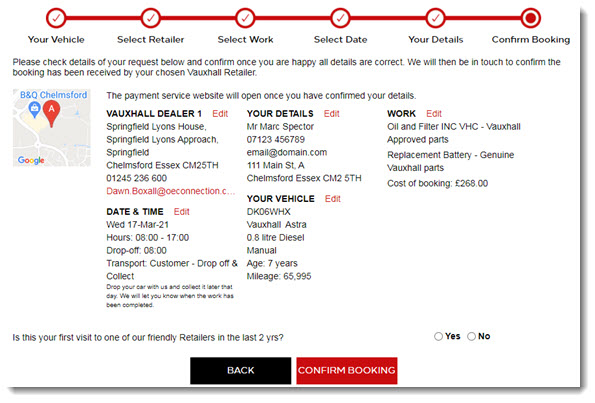
- If needed, click Edit to make any changes.
- A confirmation message will display and your booking process is complete.
- You will receive an email confirmation once the dealer has confirmed your booking.